Try it without the hardware
You can try PlancH with your own Home Assistant before building one: the same firmware runs on any ESP32 development board with nothing connected (the "test bench"), and a Home Assistant card draws the panel on its picture. The display shows your rooms and devices, the LEDs light up, and you press the keys on the screen.
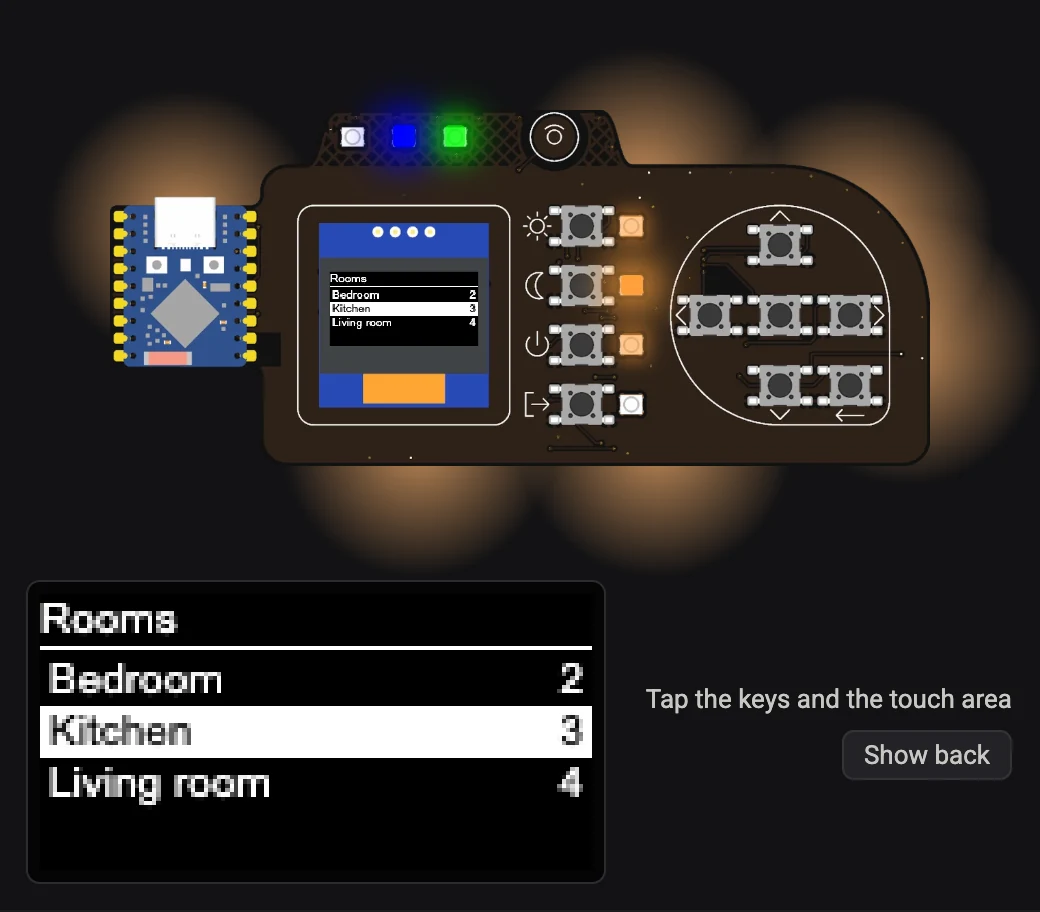
It is also how the firmware is developed: everything on the Firmware and Home Assistant pages works the same way.
What you need
- A classic ESP32 development board (ESP-WROOM-32, "ESP32 DevKit" and similar). The ESP32-S3 is not needed: that is for the real PlancH.
- A USB data cable, and Chrome or Edge on a computer.
- Home Assistant with the PlancH package installed and a few devices with the label PlancH.
1 · Install the test bench
- Connect the board and press Connect. Many ESP32 boards do not enter programming mode by themselves: if the installer stops at "Connecting…", hold the BOOT button while it connects.
- Choose Install PlancH test bench, then Configure Wi-Fi at the end.
- Home Assistant finds PlancH test under Settings → Devices & services: add it, then open its options (Configure) and enable Allow the device to perform Home Assistant actions.
The board shows up with a button for each key (Up, Down, Left, Right, OK, Back, Scene 1–4, Touch), two text sensors with what the display and the 13 LEDs would show (Screen and LEDs), and the lights Status LED 2, Status LED 3 and Backlight.
2 · Install the card
- Copy the folder
homeassistant/www/planch/(planch-card.jsand the two pictures) into thewwwfolder of your Home Assistant configuration (next toconfiguration.yaml), so that you havewww/planch/planch-card.js. If thewwwfolder did not exist, restart Home Assistant once. - Settings → Dashboards → ⋮ → Resources → Add resource: URL
/local/planch/planch-card.js?v=1.3, type JavaScript module. (No Resources menu? Turn on Advanced mode in your user profile.) - Reload the browser page.
After updating the card
Browsers keep the old card in their cache: after copying a new planch-card.js, change the
number after ?v= in the resource URL and reload. The browser console shows the version that
is loaded (PLANCH-CARD 1.1).
3 · Add the card to a dashboard
The quickest way is the ready-made dashboard
homeassistant/planch-test-dashboard.yaml:
create a new dashboard, open ⋮ → Edit dashboard → ⋮ → Raw configuration editor and paste the
file. It has the card with the lights of the panel, and a second view with the same data as text.
Or add the card to any dashboard:
type: custom:planch-card
device: planch_test   # prefix of the entity IDs of the board
| Option | Default | Meaning |
|---|---|---|
device |
planch_test |
Prefix of the entity IDs (sensor.<device>_screen, button.<device>_ok, …) |
screen, leds |
from device |
The two text sensors, if they have other IDs |
buttons |
button.<device>_ |
Prefix of the key buttons |
images |
/local/planch |
Folder of the two pictures |
zoom |
true |
false hides the enlarged display under the board |
Using it
- Tap the keys and the touch area on the picture: the display and the LEDs answer as on the real panel. The display is also drawn larger under the board, since the real one is only 22 × 11 mm.
- Show back turns the board over: the six backlight LEDs on the back, lit with the colour of the Backlight light. On the front they show as a glow around the board.
- The keys and LEDs behave as described on the Firmware page.